Structure of a Task
Tasks have a structure similar to the tickets.
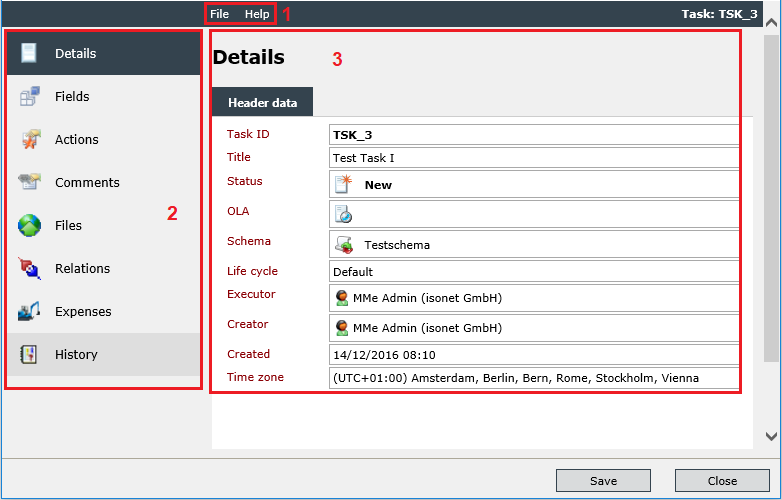
The top menu [1] offers the options to print an overview of the task and to close the task view under File. The system help and information on the system version can be found under Help.
In the function bar [2], there are various tabs available for displaying as well as adding new information on the task.
The main window [3] displays all the information on the currently active tab.
Details
The Details tab displays an overview of the task on the Header data tab, e.g. the task ID, the title, or the task schema used. If the task action Edit scheduling has been configured for a task schema, its configuration can be finished on the Scheduling tab.
Scheduling
A schedule can be used in order to configure a task for recurring assignments, so that it will always run through a certain workflow at certain times.
Fields
Two tabs are displayed under Fields: Fields and Dynamic fields. The Fields tab displays the fields that can be filled in during task creation and that are available for every created task, irrespective of the task schema. Via the two task actions Change title and description and Edit OLA, the fields can be modified afterwards as well.
The second tab Dynamic fields contains the fields that can be configured independently for each task schema. If the action Edit custom fields has been activated, the fields can be edited as well.
Actions
Currently pending actions, e.g. Assign task or Link ticket, as well as workflow activities are displayed here and can be performed by the user.
Comments
Comments on the task are displayed here. If the action Add comment has been activated, they can be added here as well.
Files
The task’s file attachments are displayed here and can be added and deleted, if the respective action - Upload file - has been activated.
Relations
Links to CIs, tickets, and tasks are displayed here. If the respective actions have been configured, links can be added and removed as well.
Expenses
The expenses for the respective task are displayed here. Various expenses, e.g. expenses generated by solving the task, can be recorded for a task.
History
Actions that have been either performed by the user or automatically by the system are listed here chronologically in order to facilitate clarity.


 Copyright (c) 2000-2026 Isonet AG