Task Statuses
A task status is the status a task can be in. The succession of the various statuses (which status follows which) is not achieved until they are used in life cycles. Depending on the status, different actions for tasks can be made available to different users and groups.
The configuration of the task statuses can be found under Settings > Task Management > Task Statuses. An overview of all already created statuses for task is displayed here.
Via the button Create task status, additional statuses can be added; via the Actions button on the left, already created statuses can be deleted.
Creating and Editing a Status
In order to create a new status, the Create task status button can be used. Alternatively, an existing status can be edited via a double click on the desired status. In the following dialog, all the configuration settings for the status can be specified.
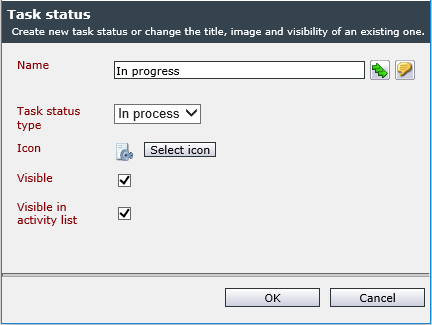
The following options can be edited here:
Name: The name of a status, as it will be displayed at various locations later on, e.g. in a task. The name can be entered localized as soon as multiple languages have been licensed.
Task status type: The status type is a rough categorization of the freely definable statuses. The list of status types cannot be edited.
Icon: The icon set here symbolizes the respective status and is displayed for a better visualization of the status in the detail view, for example. There is a predefined icon set available. However, any other icons can be used here as well. They have to be available as a .GIF file with a size of 20 x 20 px.
Visible: When this option is activated, the task will be visible. Thus, this option can be deactivated for a status a finished task is supposed to have, in order to prevent the task from being visible in the task overview, for example.
Visible in activity list: When this option is activated, a task with this status will be visible in the activity list.


 Copyright (c) 2000-2026 Isonet AG