Feedback
Feedback can be used to manage feedback or reviews from organizations or individuals.
The Feedback can be accessed via Settings > Messaging & Collaboration > Feedback.
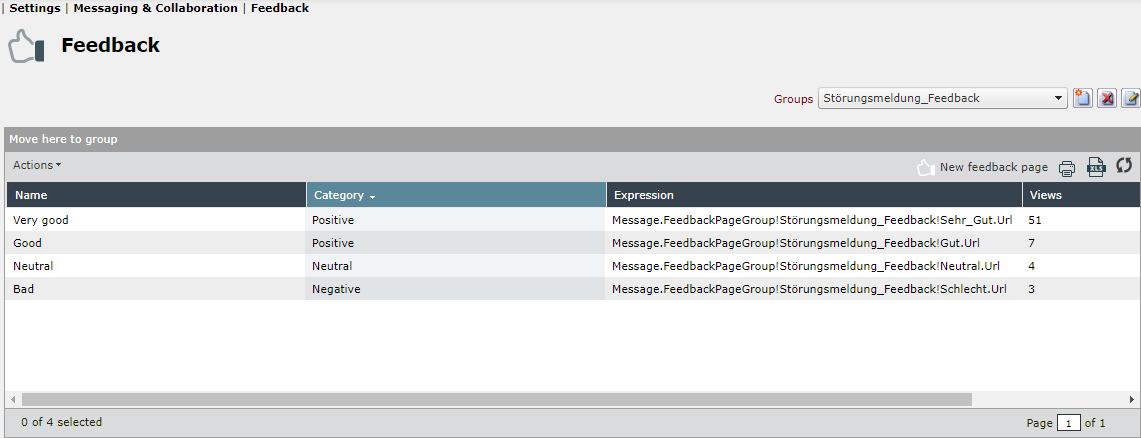
Feedback groups
Above the list on the right, various feedback groups can be created and managed. If the corresponding group is selected, all created pages of the group are displayed in the list.
The following buttons are available:
| Symbol | Description |
|---|---|

|
This can be used to create new feedback groups. |

|
Feedback groups will be deleted. |

|
Existing feedback groups are edited with this button. |
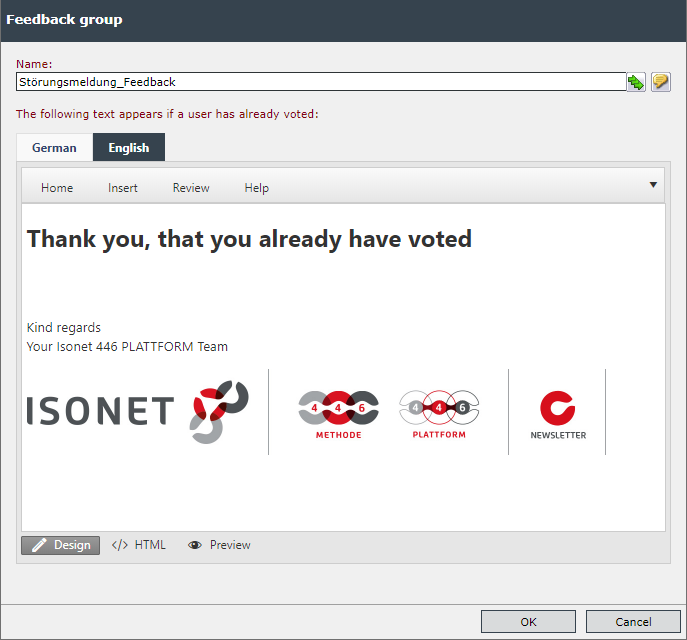
One HTML text must be created per feedback group, which is displayed if a user has already voted.
Feedback pages
Click on the New feedback page button to open a dialog box where you can add more pages to the set group. By confirming the dialog with OK the feedback page will be created.
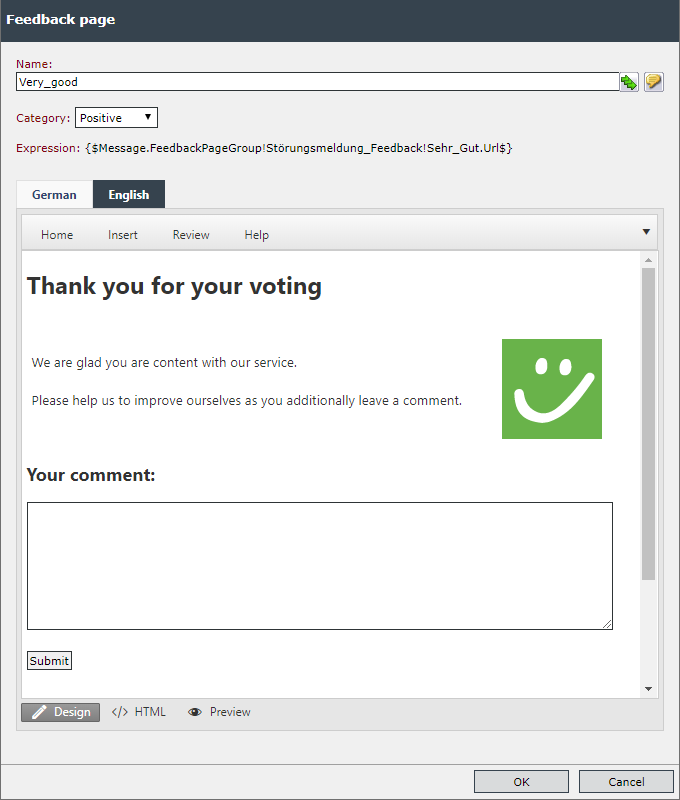
The following options are available in this dialog:
Name: This text box contains the title of the page. If multiple languages have been activated on the system, the localization buttons will be displayed and the name can be entered in all active languages.
Category: Here you must specify one of the predefined categories to be represented by the page. The following categories can be set:
- Positive
- Negative
- Neutral
- Abstention
Language tabs: In the language registers, the text can be entered as it is to be displayed. In doing so, the text can be either formatted via the controls displayed after clicking on the pencil symbol in the bottom left corner of the dialog or entered as an HTML code (button </> HTML) directly. A preview can be displayed by clicking on the eye icon.
Note:
With the HTML code the comment field can be added with the Submit button. The texts entered in the comment field are visible in the evaluation.
<textarea class="comment-box" id="uiTextAreaForComment" style="width: 580px; height: 122px;" rows="1" cols="1">
</textarea><br>
<br>
<input class="saveCommentButton" type="submit" value="Submit"><br>
Use of the feedback module:
After a group with several pages has been created, the expressions of the pages must be integrated in a message template.
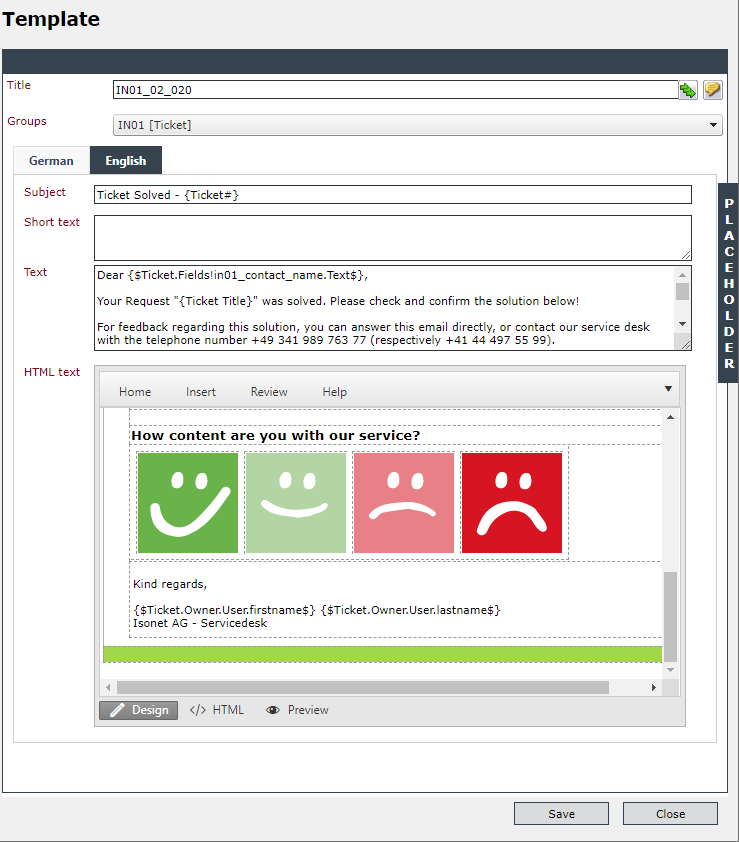
Example:
HTML code of the images with the feedback link
<table border="0" cellspacing="5" cellpadding="5">
<tbody>
<tr>

<td valign="top"><a title="Sehr Gut"
href="{$Message.FeedbackPageGroup!Störungsmeldung_Feedback!Sehr_Gut.Url$}">
<img width="100" height="100" alt="http://pics.446.world/446platform/iso_4v4.png"
src="http://pics.446.world/446platform/iso_4v4.png"></a></td>

<td valign="top"><a title="Gut"
href="{$Message.FeedbackPageGroup!Störungsmeldung_Feedback!Gut.Url$}">
<img width="100" height="100" alt="http://pics.446.world/446platform/iso_3v4.png"
src="http://pics.446.world/446platform/iso_3v4.png"></a></td>

<td valign="top"><a title="Neutral"
href="{$Message.FeedbackPageGroup!Störungsmeldung_Feedback!Neutral.Url$}">
<img width="100" height="100" alt="http://pics.446.world/446platform/iso_2v4.png"
src="http://pics.446.world/446platform/iso_2v4.png"></a></td>

<td valign="top"><a title="Schlecht"
href="{$Message.FeedbackPageGroup!Störungsmeldung_Feedback!Schlecht.Url$}">
<img width="100" height="100" alt="http://pics.446.world/446platform/iso_1v4.png"
src="http://pics.446.world/446platform/iso_1v4.png"></a></td>

</tr>
</tbody>
</table>
If the recipient uses a link in this message with the corresponding template, a web page with the content configured above will be displayed (depending on category and whether feedback has already been forwarded).
Only one feedback can be given for each message. This also applies if an e-mail has several recipients.
The results of the feedback can be evaluated with a report over a defined time period.
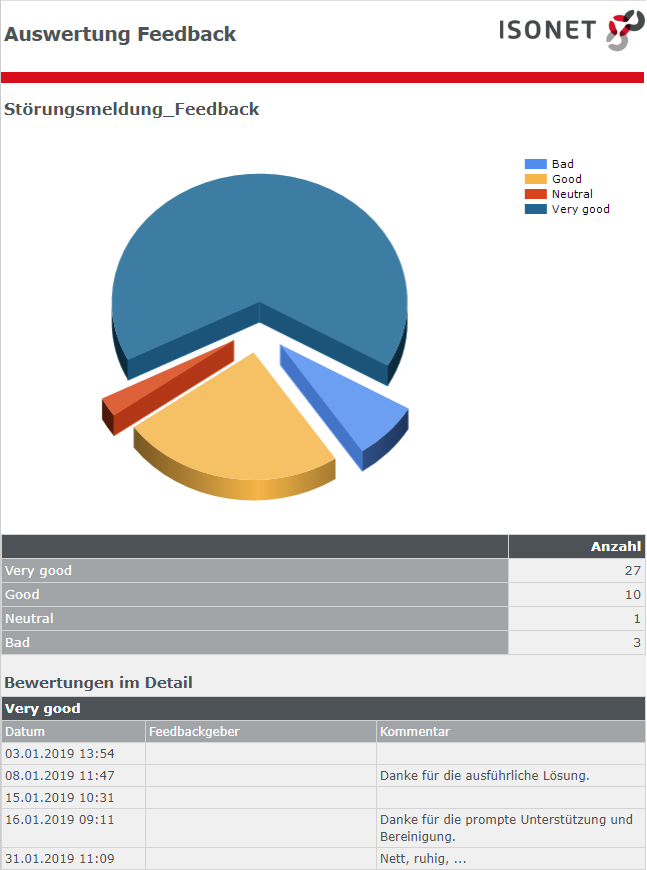
If the user who gave the feedback is known (e.g. because the e-mail has only one recipient and that recipient is a user), he or she is shown in the report.


 Copyright (c) 2000-2026 Isonet AG