Article Actions
Depending on the current article status, various workflow actions are available.
If actions like Revise or Publish are pending for the current logged in user, these actions are displayed in the activity list of this user.
Publishing Articles
After an article has been created by a user, there are two options: it can be either published immediately or submitted for checking.
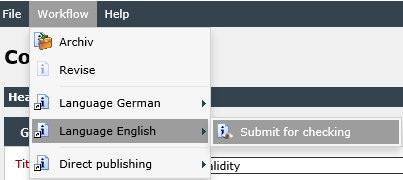
It makes sense to publish the article directly if its content is to be available as soon as possible or if a separate verification is not necessary. An article can be published directly by selecting the menu item Direct publishing under Workflow. Furthermore, it is possible to define whether the article is to be published in all languages or only in a specific language. After the article has been published, it can be viewed and used by all users with the permission to use the Knowledge Base and access to the respective article category.
In addition, the article can be archived immediately, in order to include, for example, information that is no longer up-to-date.
Tip:
Whether an article can be published directly depends on the user’s rights. He must have the permission to publish designs, review articles and, if necessary, archive articles. Furthermore, the EnableDirectPublishing or EnableDirectArchiving keys must be activated in the ConfigSettingsClient table.
The verification of an article has to be done for every available language separately and subsequently for the article as a whole. However, this only applies to systems with more than one language activated. If only one language has been activated on the system, the article is simply to be submitted for checking.
After the article has been published, the following actions are available:
Archive: The current article will be archived. It can be archived individually in every language as well. After an article has been archived, only the action Revise is available for it. Archived articles can be seen as an option for filing information not up-to-date any more, which nevertheless may be useful again later on.
Revise: The entire article will be marked for revision.
Warning:
If the article is submitted for checking, it has to be checked and, if necessary, revised by a second user before it can be published. During this period, the article will not be available to other users.
Checking Articles
If the article has not been published directly, it has to be checked first. After the check has been finished, the following workflow actions are available:
Decline: The article is declined, receives the status Draft, and thus has to be revised again.
Publish Internal: The article will only be available to certain user groups that have been activated in the User Management specifically for this purpose (permission).
Publish: The article will be available (again) in all languages to all users that can access the Knowledge Base. The status of the article will be set to Published and all users with the respective permission gain access to the article.
Publish in a certain language: This workflow action is generally similar to the action Publish. The article, however, will only be available in a certain language in the Knowledge Base. It will remain in the previous status for the other languages.
Revising Articles
If an article is marked for revision, it has to be revised by a second user. For the user to revise the article, it will be displayed with the editor again and thus can be changed, in contrast to a user that can only read the article. As soon as the revision is completed, it has to be submitted for checking again.
In order to use this automatic feature, a certain agent module has to be installed. It checks, when an article is to be resubmitted for revision. When this date arrives, the status of the article will be changed to Draft, so that normal users cannot access the article any more until the revision will be completed. Such a setting can be used for articles that are often subject to changes, for example.
Note:
If the agent module has not been started or installed, this feature can be used anyway. However, articles have to be marked for revision manually in this case.
If the article has been marked for revision, the following actions are available in the menu item Workflow:
Submit for checking: Forwards the revised article to a specified person or group for checking.
Publish directly: Allows for publishing the article immediately without rechecking the content.
Workflow actions
As an administrator, there is an option to configure certain workflow actions that will be executed whenever an article reaches a certain status from another one. Such a workflow can be created via the Workflow Designer. This workflow has to have the type KB Workflow.
To initiate the start of such a workflow, the corresponding status transitions must be configured in the knowledge schema.
As soon as such a workflow is triggered by a status change, the user actions configured in the workflow will be displayed on the Actions tab in the KB article. Simultaneously, the articles will be displayed in the activity lists of the users to perform the actions. There, they can be opened and edited via a double click.


 Copyright (c) 2000-2026 Isonet AG