Expense Types
This menu item, which can be found under Settings > Expense Management > Expense Types, shows an overview over all expense types and coordinates these expense types.

The button New expense type in the top right corner allows for creating new expense types. The settings dialog of existing expense types can be opened by double-clicking an expense type in the list. The Actions menu allows for deleting expense types.
Existing expense types can be rearranged by selecting Move up/down selected item. This order defines how the expense types are displayed in the drop-down list of the expense detail dialog.
Configuring Expense Types
The settings dialog is opened when double-clicking an expense type in the list or when a new expense type is created.
Tab Preferences
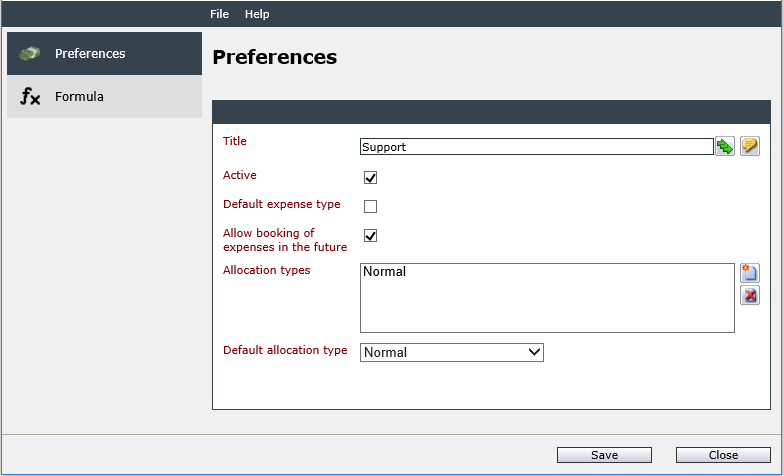
The Preferences tab in the expense type detail dialog contains general information about the configuration of the expense type.
The following fields are available here:
Title: Contains the name of the expense type. If multiple languages are activated in the system, the localization buttons (Use text in all languages and Edit language dependent text) can be used to define the title in all available languages.
Active: If this checkbox is activated, the expense type is displayed in the drop-down list when creating a new expense.
Default expense type: If this checkbox is activated, the expense type will be set as the default expense type. When a new expense is booked, this expense type will be set as default automatically. This option can only be assigned to one expense type at a time.
Allow booking of expenses in the future: If this option is activated, expenses can also be booked with a future date. If this checkbox is not activated, the current server time limits the time of bookable expenses.
Allocation types: Defines allocation types belonging to expenses. These allocation types need to be added in the course of the allocation type configuration. When creating expenses, only the stored allocation types are selectable together with the respective expense type.
Default allocation type: Defines the allocation type that is displayed in the as the default value. The only allocation types available for selection are those that have been added to the expense type.
Tab Formula
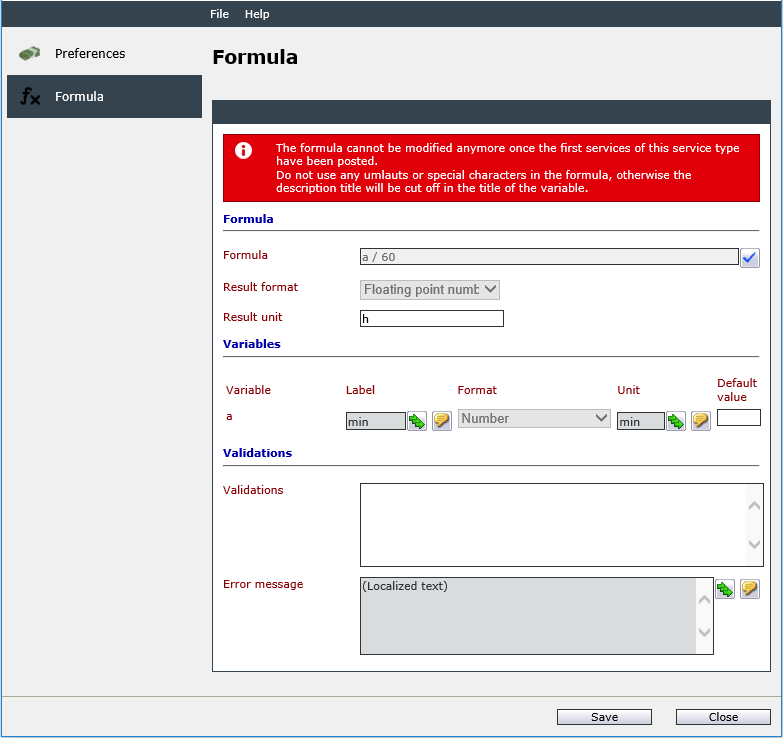
You can use the Formula tab to define the mathematical formula that serves as the calculation basis for services.
The following fields are available:
Formula: Contains the formula for the mathematical computation of an expense based on the expense type.
Warning:
When entering the formula and the definition of the variables, no umlauts or special characters shall be used.
The following mathematical operators can be used:
| Operator | Description |
|---|---|
| + | Adds two values |
| - | Subtracts two values |
| * | Multiplies two values |
| / | Divides two values |
| ( ) |
Groups mathematical terms |
The following binary operators can be used:
| Operator | Description |
|---|---|
| = | Returns 1 if both sides are equal |
| < | Returns 1 if left side is less than the right |
| > | Returns 1 if left side is greater than the right |
| <= | Returns 1 if the left side is less than or equal to the right |
| >= | Returns 1 if the left side is greater than or equal to the right |
| <> | Returns 1 if the left side is not equal to the right |
| & | Returns 1 if both sides are not equal to 0 |
| Operator | Description |
|---|---|
| abs | Returns the absolute value |
| acos | Returns the angle whose cosine is the specific value or a function |
| asin | Returns the angle whose sin is the specified value or a function |
| atan | Returns the angle whose tangent is the specified value or a function |
| ceiling | Returns the smallest whole number greater than or equal to the current value or to a function |
| cos | Returns the cosine of a value or a function in radian measure |
| cosh | Returns the hyperbolic cosine of a value or function or function |
| exp | Returns e raised to the specified power of a value or function |
| floor | Returns the largest whole number less than or equal to a value or function |
| log | Returns the logarithm of a value or function |
| log10 | Returns the base 10 logarithm of a value or function |
| round | Returns the value nearest the specified value and rounds down the value to a whole number. The values are rounded up from 0.5, otherwise the values are rounded down |
| sign | Returns a value indicating the sign of a value or function (1 if the value is mathematically positive, 0 if the value is negative) |
| sin | Returns the sine of a value or function |
| sinh | Returns the hyperbolic sine of a value or function |
| sqrt | Returns the square root of a value or function |
| tan | Returns the tangent of a value or function in radian measure |
| tanh | Returns the hyperbolic tangent of a value or function |
| min | Returns the lowest value of a list (min(x1, x2, ..., xn)) |
| max | Returns the highest value of a list (max(x1, x2, ..., xn)) |
| if | if (binary expression, first expression, second expression) returns the first expression if the value of the binary expression is not zero. Otherwise, the second expression is returned |
The expense type can only be saved if a formula has been entered.
Result format: Contains the format of the result. The available options are Duration, Floating Point Number and Number.
The Duration value needs to be entered in hh:mm format (Example: 2:30).
Result unit: Contains the unit displayed for the result of the formula.
Additional selection options in the Variables section are only displayed if an unknown string of characters has been entered in the Formula field. This character string is automatically transformed into a variable when the checkbox behind the text box is activated. When booking a new expense, these variables need to be filled in by the executor.
Variable: Contains the variable set by the user.
Label: Contains the displayed name for the variable. If multiple languages are activated in the system, the localization buttons (Use text in all languages and Edit language dependent text) can be used to define the label text in all available languages.
Format: Defines the format of the variable. It is possible to select between Duration, Floating Point Number and Number.
The Duration value needs to be entered in hh:mm format (Example: 2:30).
Unit: Contains the unit displayed for the variable, which is displayed when booking an expense. If multiple languages are activated in the system, the localization buttons (Use text in all languages and Edit language dependent text) can be used to define the label text in all available languages.
Default value: Allows for defining a fixed value for the variable. When booking an expense, this value is automatically set for the input field of the variable, but can be modified by the user.
Warning:
The formula cannot be modified after the first expense of a particular expense type has been booked. This can only be effected by deleting all expenses that are connected to this expense type.


 Copyright (c) 2000-2026 Isonet AG