Zone Import
In order to configure a zone import, a new import has to be created via Settings > Configuration Management (CMDB) > Import.
Import Configuration
The basic information for this import has to be entered in the following dialog:
Name: The name of the import.
Description: A short descriptive text for the import can be entered here.
Import type: Import zones must be selected here.
Schema order: Which available standard hierarchy is to be used for the zone import?
Schema: This is the zone schema to be used for the import.
Zone: This is the zone, in which the new zones will be generated.
Method: Defines, what happens if the import zone already exists.
Create new zone and don't update existing: A new zone is created, the existing zone is not changed.
Create new zone and update existing: A new zone is created, the existing zone is changed.
Create new zone: Creates a new zone in any case.
Create new zone and delete existing: A new zone is created, the existing zone is deleted.
Create no zone and update existing: No new zone is created, the existing zone is changed.
Create no zone and delete existing: No new zone is created, the existing zone is deleted.
Data source: The source of the origin data (e.g. LDAP) of the import.
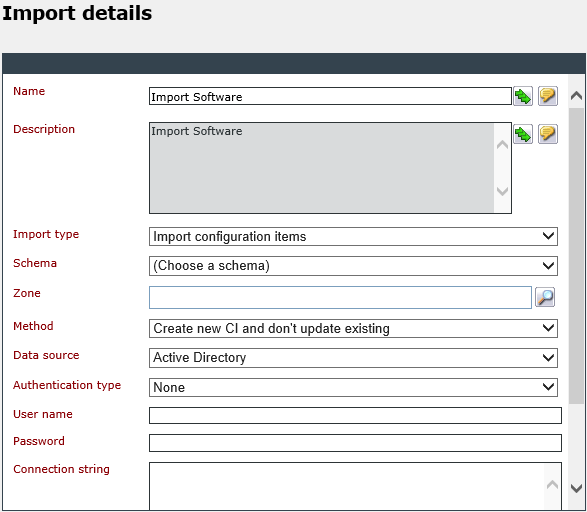
Depending on the data source, additional information may be required.
Options
After the data has been saved, the other tabs on the left will be available for configuring the import. On the Options tab, the following options are available:
Disable the zone hierarchy: This option deactivates the automatic assignment of zone schemas (standard zone hierarchy).
Warning:
If this option is not activated, a standard zone hierarchy is necessary, otherwise no import can be executed. If the standard zone hierarchy is to be deleted, please contact your project leader first.
The options Delete relations and Detect conflicts may be available here as well. In this case, the zone import is an older version – the import must be saved without change. The options mentioned above should subsequently disappear, as the system has refreshed the import.
Mapping
The mapping makes sure that
- the contents of the various columns of the import data source are written into the correct fields of the zone,
- the uniqueness of the imported zones is assured (primary key column), and
- relations between zones will be established for the hierarchy (foreign key).
A click on New Mapping creates a new entry in the mapping table. The following setting options are available at the beginning:
Mapping class: Only Zone is available here.
Key type:
- Primary key: The distinct column of the import.
- No key: This key type is used for filling in fields without a key function.
- Foreign key: With this key type, connections between zones can be established.
Primary Keys
An import, which is to create new zones, requires a primary key. After the key type has been set to Primary key, the following window is displayed:
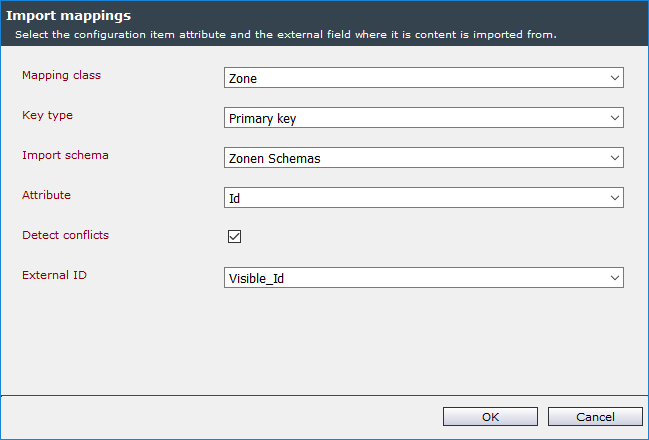
The following fields are required for creating a primary key mapping:
Import schema: The zone schema to be used.
Attribute: The dynamic field of the zone schema the primary key column is to be imported into has to be selected here.
External ID: The corresponding column in the import data source.
No key
Presumably, there will be some columns in an import that are only to be transferred into the respective dynamic fields. For this purpose, the key type No key can be used:
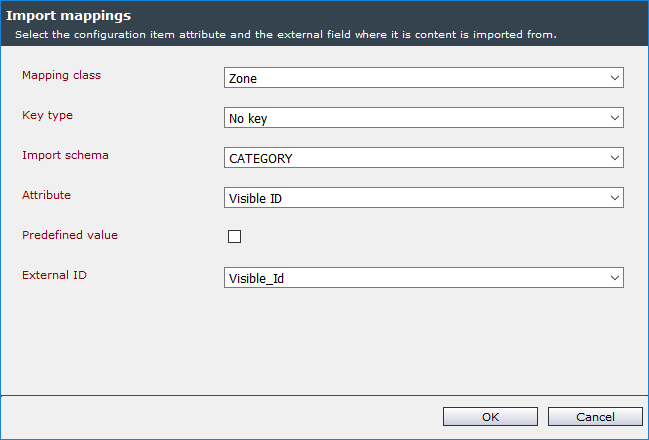
The following fields are necessary in order to create a normal field mapping (without key):
Import schema: The zone schema to be used.
Attribute: The dynamic field of the zone schema, into which the field is to be imported.
External ID: The corresponding column in the import data source.
Predefined value: If this option is checked, a static value will be entered into the zone field. Thus, no column will be referenced from the import data source for the mapping.
Foreign Key
In order to create relations between different zones, the key type Foreign key is needed. The following fields are required for creating a mapping via foreign key:
Linked import: The zone import this mapping refers to.
Linked mapping: The primary key entry in the mapping table of the linked import.
External ID: The corresponding column in the import data source.
Please note that a foreign key mapping only creates a relation, but does not fill in dynamic fields. If the column from the import source is to be filled into a field as well, an additional No key mapping has to be defined for this purpose.
Examples of Use for the Zone Import
1. Basic Import of Zones with the Same Schema, Without Standard Hierarchy
If zones are to be imported without regard for the standard zone hierarchy, the following procedure is necessary, if these two criteria match the case:
- The zone hierarchy is not limited and displays a different depth for every virtual zone.
- Only an universal zone schema is to be used.
In this case, the option Disable the zone hierarchy must be selected in the import options in the zone import.
If the import data source does not contain any hierarchy information (e.g. parent zone), it is only possible to import the zone as flat. The procedure is easy here:
- A primary key mapping must be created on the distinct zone label.
- Furthermore, a mapping must be created on the visible ID for the zone to be named.
- Optional: Creating an arbitrary amount of No key mappings for user-defined fields.
If the import data source contains a column with hierarchy information (e.g. parent zone), this information can be used by creating a Foreign key mapping onto this field. The rest is processed automatically, provided the entries in the field Parent zone match the name of the zone.
2. Import with Automatic Schema Assignment Using the Standard Hierarchy
The import is more complex, if the imported zones are supposed to be created using a specific zone schema each (e.g. if different schemas are used for City, Building, Floor, Office, etc.). This can be taken into account during the import, if a corresponding standard zone hierarchy has been defined. For this purpose, a zone hierarchy has to be defined in the CMDB schema administration by moving the zone schemas onto the entry Standard hierarchy via drag and drop.
Warning:
- Only use your defined hierarchy during the import. The zones will be assigned to the corresponding zone schemas due to their hierarchical level. The imported hierarchy cannot be deeper than the standard hierarchy.
- You have to create its own field mapping for every zone schema, so the import mapping is more complex in this case.


 Copyright (c) 2000-2026 Isonet AG