Conflicts
The conflict system monitors fields and relations of zones and CIs and makes sure that data is not overwritten unwittingly. If the conflict system notices a possibly forbidden modification, it prevents it and generates a corresponding conflict.
Fields and relations can be found in the following statuses (initial condition):
- Empty,
- last modification by own import (view from import),
- last modification by other import (view from import), and
- last modification by user.
Analogously, the following data modification options are available:
- By user,
- by import.
The conflict trigger mechanism can be found in the following table:
| Initial condition | Modification by user | By import |
|---|---|---|
| Empty | OK | OK |
| Own import | Conflict | OK |
| Other import | Conflict | Conflict |
| User | OK | Conflict |
Conflicts resulting from data modification by the user directly in the user interface are solved on the spot.
Example:
A user opens an imported CI and tries to change the content of an imported field. A conflict arises and results in an alarm dialog (Do you really want to change this field?). If the user presses the OK button, the conflict is solved directly and the field content is changed. The status of the field is now changed to Last modification by user.
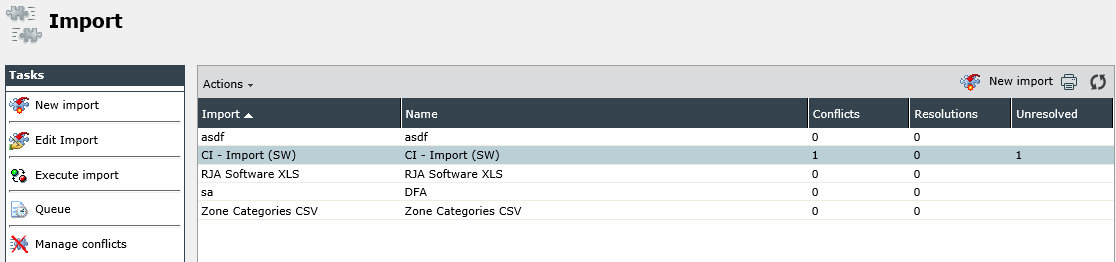
Conflicts generated during an import arise in the background and thus cannot be solved in the user interface immediately. Such conflicts are collected by the system in a conflict list. Every import has its own list. The following figure shows the unresolved conflicts of the import CI - Import (SW):
Tip:
If a conflict arises, the underlying data change has not been processed. If content is missing in your imported datasets unexpectedly, first check whether there are any conflicts listed.
Solving Conflicts
If there are unsolved conflicts, the respective import has to be highlighted with a left click and then the Manage conflicts button on the left is to be clicked. A table with all of the conflicts and the corresponding solution actions will appear.
In order to edit conflicts, they can be highlighted (it is possible to highlight more than one using the [CTRL] key as well) and then the Open conflict button needs to be clicked.
In the following dialog, the details to any selected conflict can be seen and one of the following solution options can be selected:
Apply: Solves the conflict. The data change prevented by the conflict will be applied during the next import. The conflict dataset remains unchanged.
Ignore: Solves the conflict. The data change prevented by the conflict will not be applied during the next import. The conflict dataset remains unchanged.
Unsolved: Deletes the conflict dataset. No data change is applied.
The options Apply and Ignore cause the conflict system to memorize the solution, in order to solve future conflicts in this dataset in the same way automatically. The option Unsolved simply causes a deletion of the conflict, i.e. it can appear again later on.
Note:
After clicking on Apply, the data change is not performed yet. The import has to be executed one more time.
Conflicts with visible ID
If the setting for the visible ID has been configured to only be allowed to occur once in the system, and if a CI with a visible ID that already exists on the system is to be imported, a conflict will be triggered. In order to solve this conflict, the CI visible ID must be changed in the source.


 Copyright (c) 2000-2026 Isonet AG