Messaging and Collaboration
| Icon | Description |
|---|---|
|
Attach message to ticket 
Old icon: |
Attach the current message to a ticket. This plug-in can be enabled and disabled (red cross). Configuration
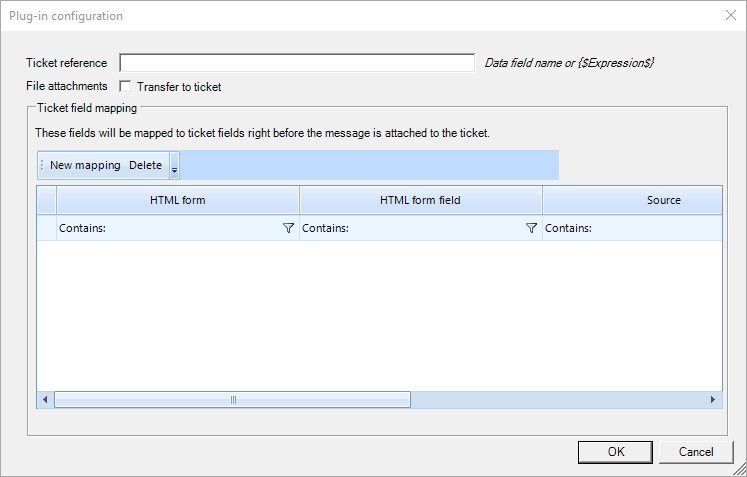
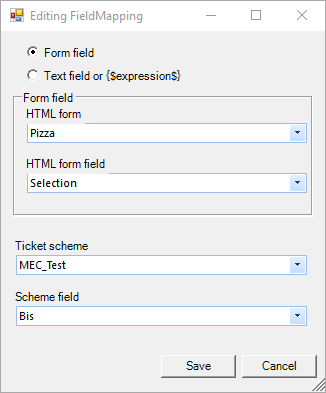
Ticket reference: The data field name or an expression is entered. File attachments: The transfer of the file systems into the ticket can be selected. Ticket field mapping: The values that are to be written to the specified ticket field can be defined before the message is linked to the ticket. The use of expressions is possible.
|
|
Block next automatic notification
Old icon: - |
The plug-in prevents the next workflow activity from sending push notifications once. This only includes workflow activities, all other plug-ins are not affected. A configuration is not necessary. It is available when the other notification plug-ins are available (LicenseKey: EnableNotificationPlugins). |
|
Confirm notifications 
Old icon: |
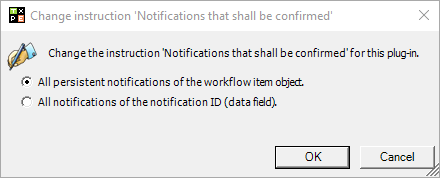
This plug-in confirms the notification of type "Persistent" with the given ID. This plug-in can be enabled and disabled (red cross). Configuration The following two options can be selected for the message to be confirmed:
|
|
Free/Busy check 
Old icon: |
If tickets are to be assigned due to free/busy information, this plug-in can be used. Via this plug-in, free/busy information can be retrieved from an Exchange server in a workflow. Based on this information, depending actions can be executed. Five different types of information are available here:
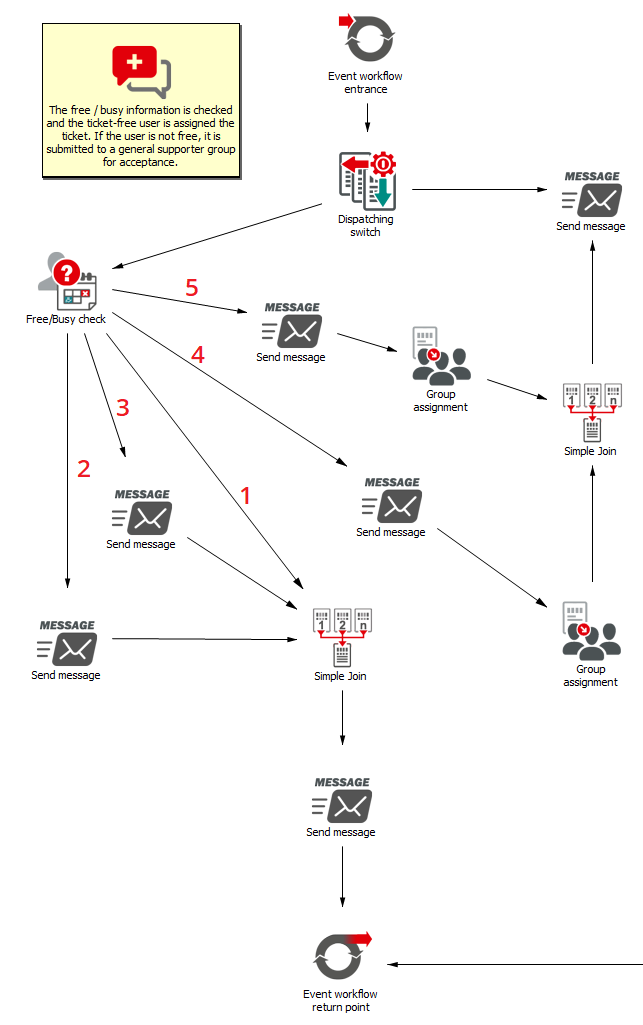
Another use is explained in the following example: Example: The first decision in the workflow is whether the ticket has been assigned to a group or user. If the ticket is assigned to a group, a free/busy check is not necessary as the ticket will be submitted for acceptance to multiple users. Thus, a user who is not out of office or busy can accept the ticket. However, if the ticket is assigned to a single user, the free/busy check is necessary, as the ticket will only be assigned to the user if he is not busy or absent.
The workflow shows the configuration of the five possible outputs of the plug-in. If the user is free, the ticket will be assigned to him and he will receive a corresponding e-mail (path 1). If the user is potentially busy or absent, the ticket will be assigned to him anyway. In this case, however, a third person will receive an e-mail containing the information that the user is probably busy or absent or that no information is available for this user (paths 2 and 3). A dispatcher can now decide whether the ticket is to remain with this user for processing or he will reassign it. If the user is out of office or already busy, the ticket will not be assigned to him (paths 4 and 5). In this case, the ticket will be submitted to a general group of supporters for acceptance. Additionally, a dispatcher will receive an e-mail containing the information that the ticket could not be assigned automatically. The dispatcher can then look into the reason and possibly take appropriate measures for the future. Configuration Starting time: The beginning of the time span to be checked in the format DD.MM.YYYY HH:MM Ending time: The end of the time span to be checked in the format DD.MM.YYYY HH:MM Data field name (starting time): A data field in the workflow item running through the plug-in, from which the beginning of a time span is to be read out. Data field name (ending time): A data field in the workflow item running through the plug-in, from which the ending of a time span is to be read out. User: The user the free/busy check is to be performed for is to be specified here. |
|
Send Knowledge Base message
Old icon: |
This plug-in sends a Knowledge Base message using the specified scheme. It can be enabled and disabled (red cross). Configuration Messaging scheme: The specific messaging schema for sending the message is to be selected here. Language: The language to be used for sending the message. |
|
Send message 
Old icon: |
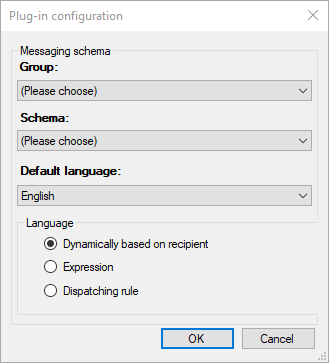
This plug-in is used whenever a ticket message is to be sent. For this purpose, the messaging schema has to be specified. In general, the plug-in is used whenever a message is to be sent that cannot be classified as one of the following special cases: task message, KB message, early warning message. Configuration
Group: The messaging schema group is to be selected here. Schema: The specific messaging schema for sending the message is to be selected here. Default language: The language to be used for sending the message whenever no distinct language can be identified. Language: The language to be used for sending the message. The following options are available here:
|
|
Send notifications 
Old icon: |
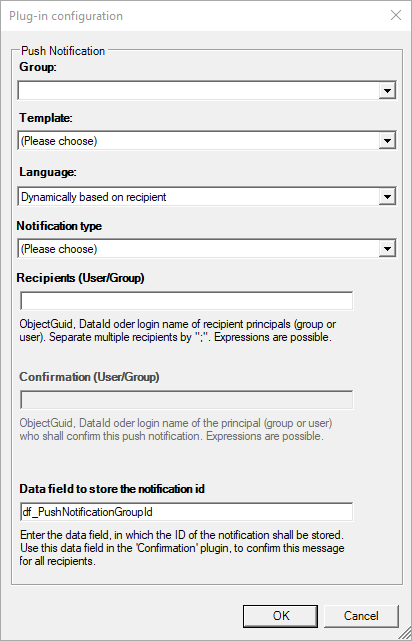
This plug-in sends a notification to the given recipients with the given template. Configuration
Group: The message routing group must be selected here. Template: Here the specific message template for the transmission is selected. Language: Language in which the message is to be sent. The following options exist:
Notification type: The message type can be selected:
Recipients (User/Group): ObjectGUID, data ID or login name of recipient principals (group or user). Separate multiple recipients by ";". Expressions are possible. Confirmation (User/Group): ObjectGUID, data ID or login name of principal (group or user) who shall confirm this push notification. Expressions are possible. Data field to store the notification id: Enter the data field, in which the ID of the notification shall be stored. Use this data field in the Confirmation plug-in, to confirm this message for all recipients. |
|
Send principal message
Old icon: |
This plug-in sends a principal message using the specified scheme. It can be enabled and disabled (red cross). Configuration Messaging scheme: The specific messaging schema for sending the message is to be selected here. Language: The language to be used for sending the message. |











 Copyright (c) 2000-2026 Isonet AG