Actions
Adding a Form Action to the Workflow
After a form has been configured, it can be integrated into a workflow plug-in. For this purpose, the Workflows tab has to be opened again.
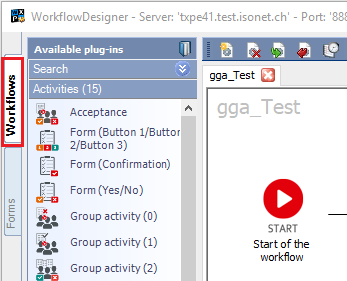
Now, a form action, which provides the form to the users, has to be added to the workflow.
For this purpose, the plug-in Form (Confirmation) can be used, for example. After the plug-in has been dragged into the design area of the Workflow Designer, the form can be used in the plug-in.
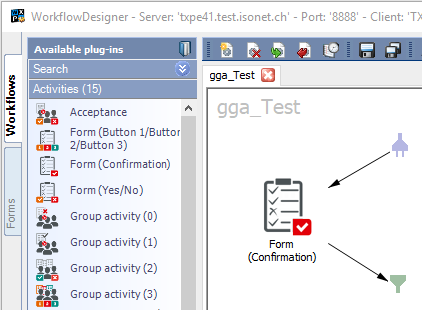
For this purpose, the configuration dialog has to be opened by clicking on the small gear wheel icon on the right above the plug-in.
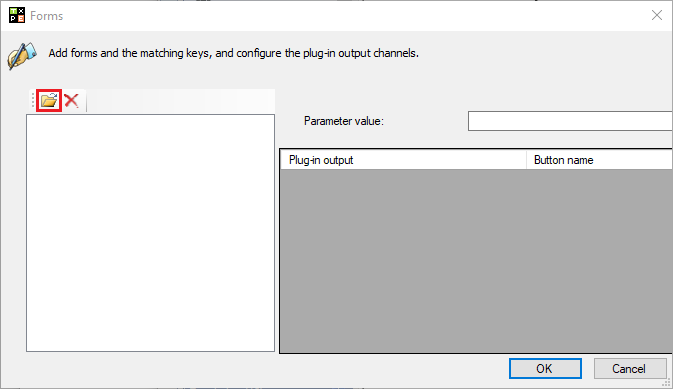
After a click on the button for opening a form, a dialog will open, in which the form to be available in this action can be selected.
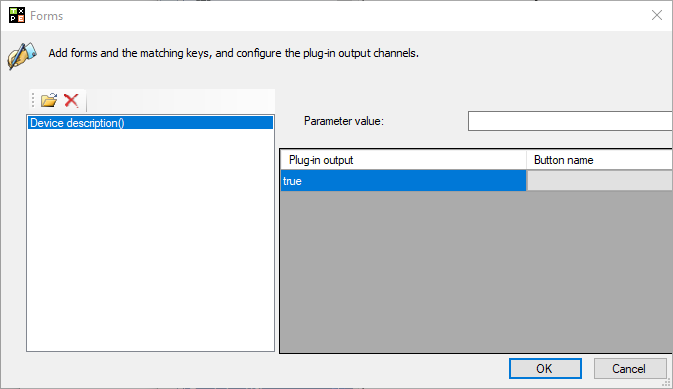
Subsequently, the corresponding button has to be selected for the respective plug-in output. In this example, a form with only one button has been created. Thus, only this one button can be selected here. This is different for other forms containing multiple reply options or a Back button.
Forms and Languages
As multiple languages cannot be managed in an HTML form, it is not possible to create multilingual forms. In order to bypass this problem, a separate form has to be created for every available language.
For this purpose, it is necessary to define the language the current form is to be valid for. The parameter value has to be set to the language code of the respective language (e.g. de for German or en for English).
If a form is be used for all languages or if there is only one language available on the system, * can be specified as the parameter value. This means that the current form will be used for all available languages.
Write Data Fields
In order to write the entered data from the form fields into individual ticket fields, the plug-in Fill Ticket Field With Form Values is necessary.
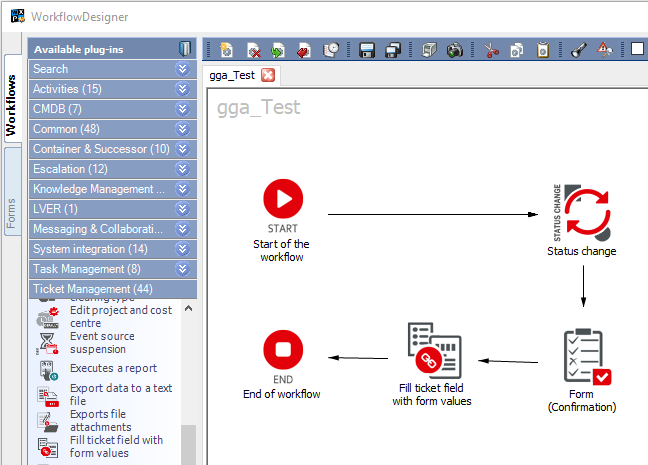
By clicking on the gear icon top right of the plug-in, the configuration dialog for the plug-in can be opened.
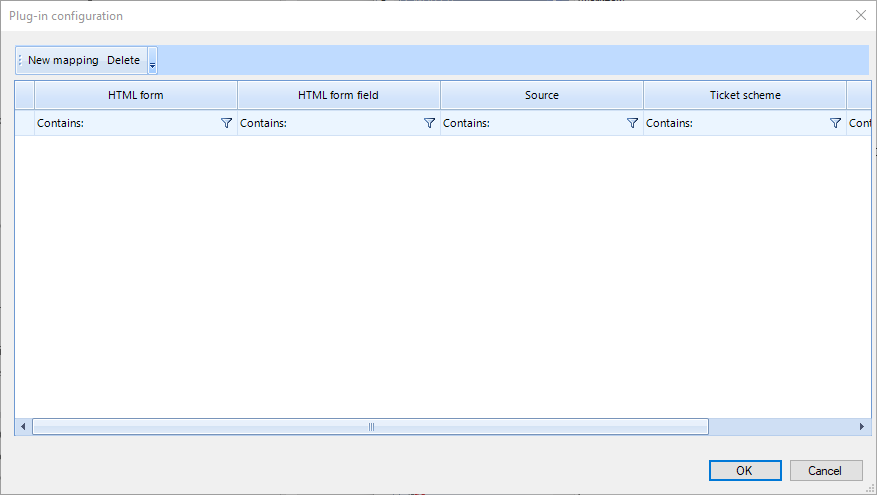
Via the button New mapping in this dialog, a new relation can be created between a form field and a ticket field.
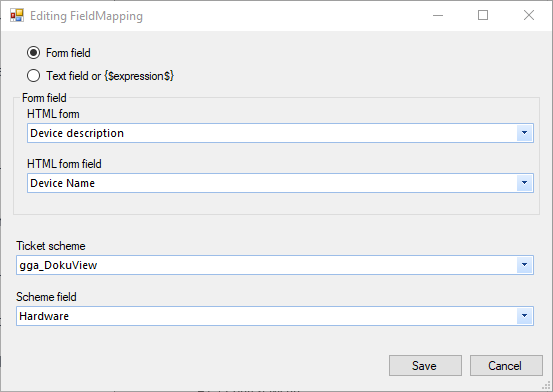
This dialog allows for configuring the field mappings.
Select a form in the topmost drop-down list. In the second drop-down list, the data field, which has been assigned with an input field in the form, can be selected.
Subsequently, the ticket schema and ticket schema field the value of the data field is to be written into has to be selected.
Confirm your selection by clicking on Save. Add all of the necessary fields.
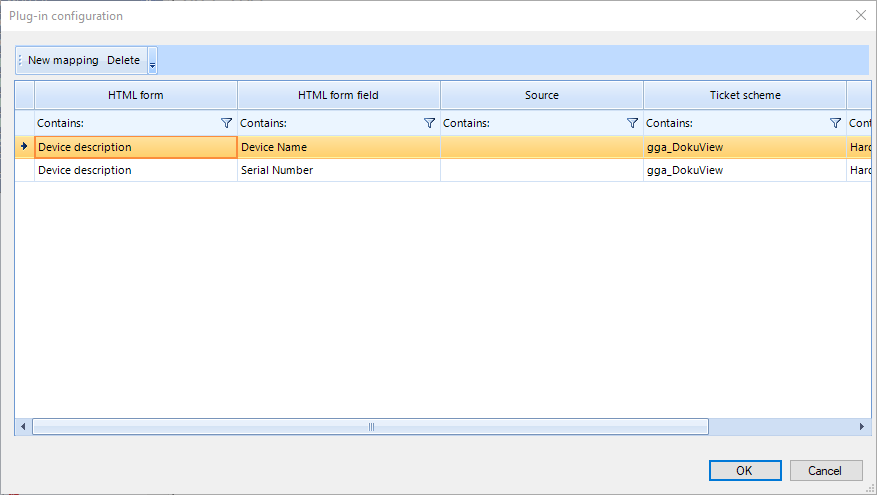
Confirm the mapping dialog via the OK button.
Finally, the plug-ins have to be integrated into the workflow.
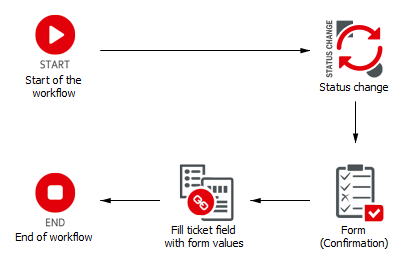
Using the Form
As soon as the ticket enters the plug-in Form (Confirmation), the user having to perform this action will be provided with the form for completion.
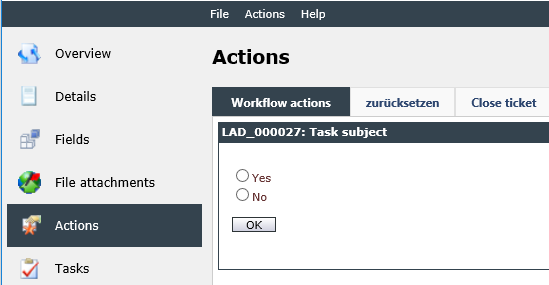
The user can now enter all necessary data. After a click on the Next button, all data will be written into the ticket fields and thus be available in the ticket during the further course of the workflow.


 Copyright (c) 2000-2026 Isonet AG