Searching in the Knowledge Base
There are several searching options for finding articles quickly: Using filters, categories, and the full text search or the display of articles according to status.
Filter
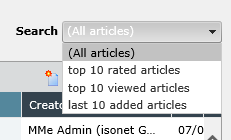
Via the extra option Search above the article list on the right, you can narrow down the article range using three predefined filters. Search can also be combined with the categories, the status, and the search simultaneously.
Categories
In the field on the left, you can find the Category tab. When one of these categories is selected, only articles in the respective category and its subcategories will be displayed.
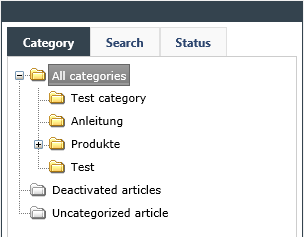
Depending on the configuration of the article, it can be displayed in several categories.
Search
The search enables you to enter miscellaneous words or word parts and to search for them. In doing so, you can extend or narrow down the search by using certain options, like Mode, via which you can select whether all of the entered words or only one of them has to be found in the article.
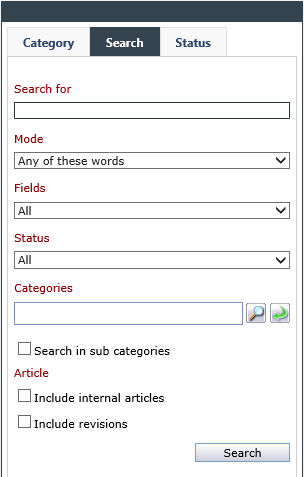
With the option Fields, you can select, in which field the entered word is to appear. Under Status, the status of the articles to be searched for can be specified, and under Categories, the categories to be searched can be selected. Furthermore, there is a checkbox for the search in subcategories, one for a search including internal articles, and another one for the search in revisions of the original article.
Status
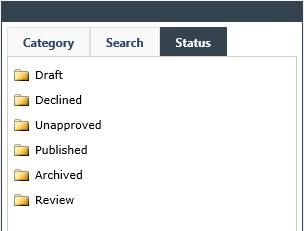
Using the search via the Status tab, all articles will be displayed according to their status (e.g. Draft, Archived), irrespective of the category they belong to. Articles belonging to a category not unlocked for the current user’s group will not be displayed.


 Copyright (c) 2000-2026 Isonet AG